> ## Documentation Index
> Fetch the complete documentation index at: https://docs.getcmd.dev/llms.txt
> Use this file to discover all available pages before exploring further.
# Quick Start
> Start using cmd effectively in Xcode
**Prerequisites**: Make sure you've [installed cmd](/pages/install) and configured at least one AI provider.
## Your First Task
Let's walk through using cmd for a simple task to get familiar with the interface and workflow.
Launch Xcode and open any project (or create a new one if you don't have one handy).
Check that:
* The ⌘ menu bar icon is visible
* Bring up cmd's chat interface by using `⌘` + `I`, or using the menu bar.

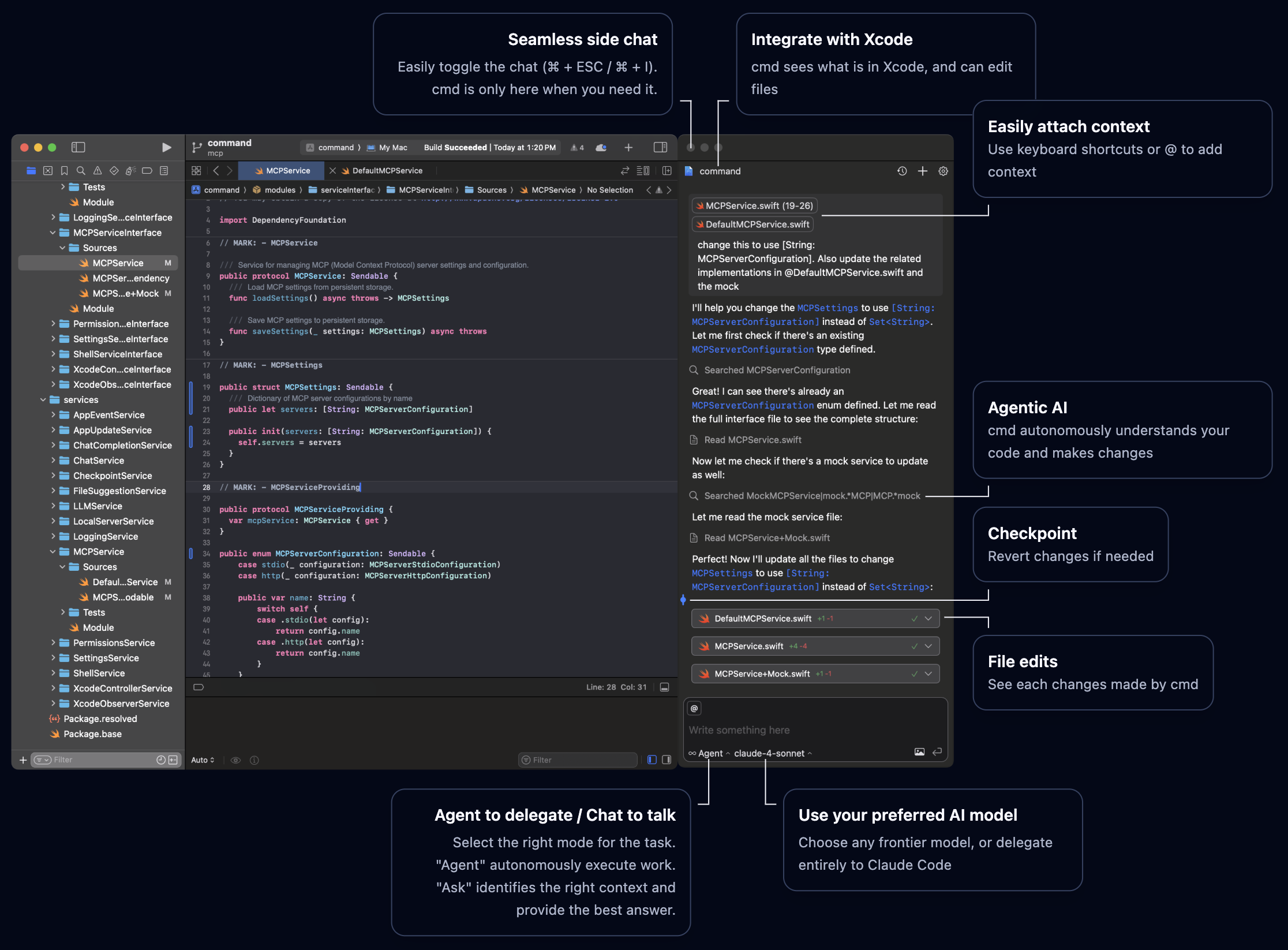 Open a Swift file and select a code snippet you want to work with. Press `⌘` + `⇧` + `I`
Try asking cmd something simple like:
* "Explain what this function does"
* "Add comments to this code"
* "What does this class do?"
cmd will see your selected code and provide context-aware answers.
cmd can see what you're working on in Xcode, including selected code, open files, and your current project. This context makes responses much more relevant than general AI assistants.
## Understanding Modes
cmd offers different modes for different workflows. Try switching between them:
**Best for**: Complex tasks, code generation, refactoring
In Agent mode, cmd can:
* Edit multiple files
* Run builds and tests
* Fix errors it encounters
* Check its own work
**Example tasks**:
* "Add error handling to this networking code"
* "Refactor this view controller to use SwiftUI"
* "Create a new data model for user preferences"
**Best for**: Questions, explanations, learning
In Chat mode, cmd provides answers without modifying code:
* Explain complex patterns
* Get architectural advice
* Understand unfamiliar code
* Learn best practices
**Example questions**:
* "How does this architecture pattern work?"
* "What's the difference between @State and @Binding?"
* "Why is this code causing a memory leak?"
cmd will always ask before making changes, unless a permission is granted permanently.
## Switching Models
Different tasks benefit from different AI models:
Click the model dropdown at the top of the cmd sidebar.
Select from your enabled models:
* **Fast models** (GPT-3.5, Claude Haiku): Quick answers and simple tasks
* **Balanced models** (Claude Sonnet, GPT-4 Turbo): Most coding tasks
* **Powerful models** (Claude Opus, GPT-5): Complex problems
cmd will use the selected model for subsequent requests.
Start with a balanced model like Claude Sonnet. Switch to faster models for simple questions or more powerful models for complex tasks.
## Using Xcode 26 Integration
If you configured Xcode 26 integration during installation:
1. Open Xcode 26's AI chat interface
2. Select cmd, then your desired model
3. Ask questions or request changes
4. cmd provides the AI capabilities behind the scenes
5. You get Xcode's native interface with cmd's agentic AI
1. Use the cmd sidebar as described above
2. See richer formatting and better visual feedback
3. Access all cmd-specific features
You can use both interfaces interchangeably based on your preference. Both use the same cmd configuration and AI providers.
**Having issues?** Open an issue on [GitHub](https://github.com/getcmd-dev/cmd/issues).
Open a Swift file and select a code snippet you want to work with. Press `⌘` + `⇧` + `I`
Try asking cmd something simple like:
* "Explain what this function does"
* "Add comments to this code"
* "What does this class do?"
cmd will see your selected code and provide context-aware answers.
cmd can see what you're working on in Xcode, including selected code, open files, and your current project. This context makes responses much more relevant than general AI assistants.
## Understanding Modes
cmd offers different modes for different workflows. Try switching between them:
**Best for**: Complex tasks, code generation, refactoring
In Agent mode, cmd can:
* Edit multiple files
* Run builds and tests
* Fix errors it encounters
* Check its own work
**Example tasks**:
* "Add error handling to this networking code"
* "Refactor this view controller to use SwiftUI"
* "Create a new data model for user preferences"
**Best for**: Questions, explanations, learning
In Chat mode, cmd provides answers without modifying code:
* Explain complex patterns
* Get architectural advice
* Understand unfamiliar code
* Learn best practices
**Example questions**:
* "How does this architecture pattern work?"
* "What's the difference between @State and @Binding?"
* "Why is this code causing a memory leak?"
cmd will always ask before making changes, unless a permission is granted permanently.
## Switching Models
Different tasks benefit from different AI models:
Click the model dropdown at the top of the cmd sidebar.
Select from your enabled models:
* **Fast models** (GPT-3.5, Claude Haiku): Quick answers and simple tasks
* **Balanced models** (Claude Sonnet, GPT-4 Turbo): Most coding tasks
* **Powerful models** (Claude Opus, GPT-5): Complex problems
cmd will use the selected model for subsequent requests.
Start with a balanced model like Claude Sonnet. Switch to faster models for simple questions or more powerful models for complex tasks.
## Using Xcode 26 Integration
If you configured Xcode 26 integration during installation:
1. Open Xcode 26's AI chat interface
2. Select cmd, then your desired model
3. Ask questions or request changes
4. cmd provides the AI capabilities behind the scenes
5. You get Xcode's native interface with cmd's agentic AI
1. Use the cmd sidebar as described above
2. See richer formatting and better visual feedback
3. Access all cmd-specific features
You can use both interfaces interchangeably based on your preference. Both use the same cmd configuration and AI providers.
**Having issues?** Open an issue on [GitHub](https://github.com/getcmd-dev/cmd/issues).