

System Requirements
- Operating System: macOS
- Xcode: 16.x or 26.x
Step 1: Install cmd
Install with Homebrew (Recommended)
Install with Homebrew (Recommended)
The easiest way to install cmd:
Download DMG
Download DMG
Alternatively, download the latest release:
- Visit the releases page
- Download the DMG file
- Open the DMG and drag cmd to Applications
- Launch cmd from Applications or Launchpad
cmd will automatically update, unless auto-updates are disabled.
Step 2: Grant Permissions
cmd needs specific permissions to integrate with Xcode.Grant Accessibility Permission
Grant Accessibility Permission
cmd needs accessibility permission to integrate with Xcode:
- Launch cmd
- When prompted, click “Open System Settings”
- Enable cmd in Privacy & Security > Accessibility
- Return to cmd
Grant Xcode Extension Permission
Grant Xcode Extension Permission
cmd also needs Xcode extension permission:
- When prompted, click “Open System Settings”
- Enable cmd in Privacy & Security > Extensions > Xcode Source Editor
- Restart Xcode for the changes to take effect
You must restart Xcode after enabling the extension for it to work properly.
Step 3: Configure AI Providers
cmd requires at least one AI provider to function. You’ll configure this during the onboarding flow.1
Choose a Provider
Select from supported providers like OpenAI, Anthropic, Google AI, or others
2
Enter API Key
Provide your API key from the chosen provider
3
Test Connection
cmd will verify your configuration works
4
Enable Models
Choose which models you want to use
Complete AI Provider Setup
See the full guide for configuring AI providers and managing API keys
Your API keys are stored securely in macOS Keychain. cmd never sends your code to its own servers—only to your chosen AI provider.
Step 4: Configure Xcode 26 (Optional)
If you’re using Xcode 26, you can integrate cmd with Xcode’s built-in AI chat interface.1
Open Xcode Settings
In Xcode, go to Xcode > Settings > Intelligence
2
Add Model Provider
Click “Add a Model Provider”
3
Configure Local Model
Select a local model running on port 10101: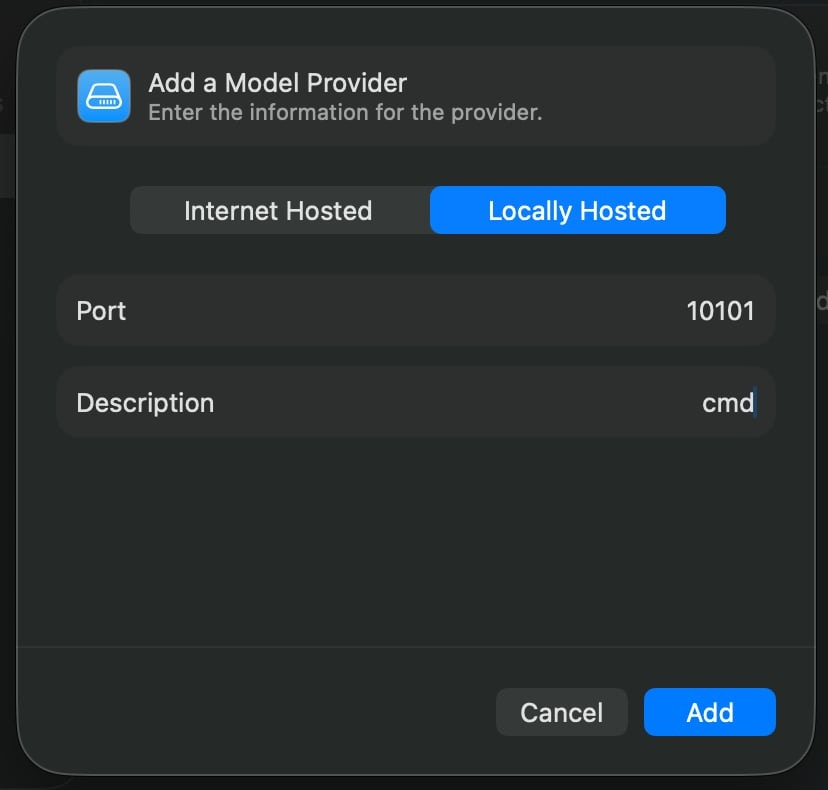
4
Use Either Interface
You can now interact with cmd through: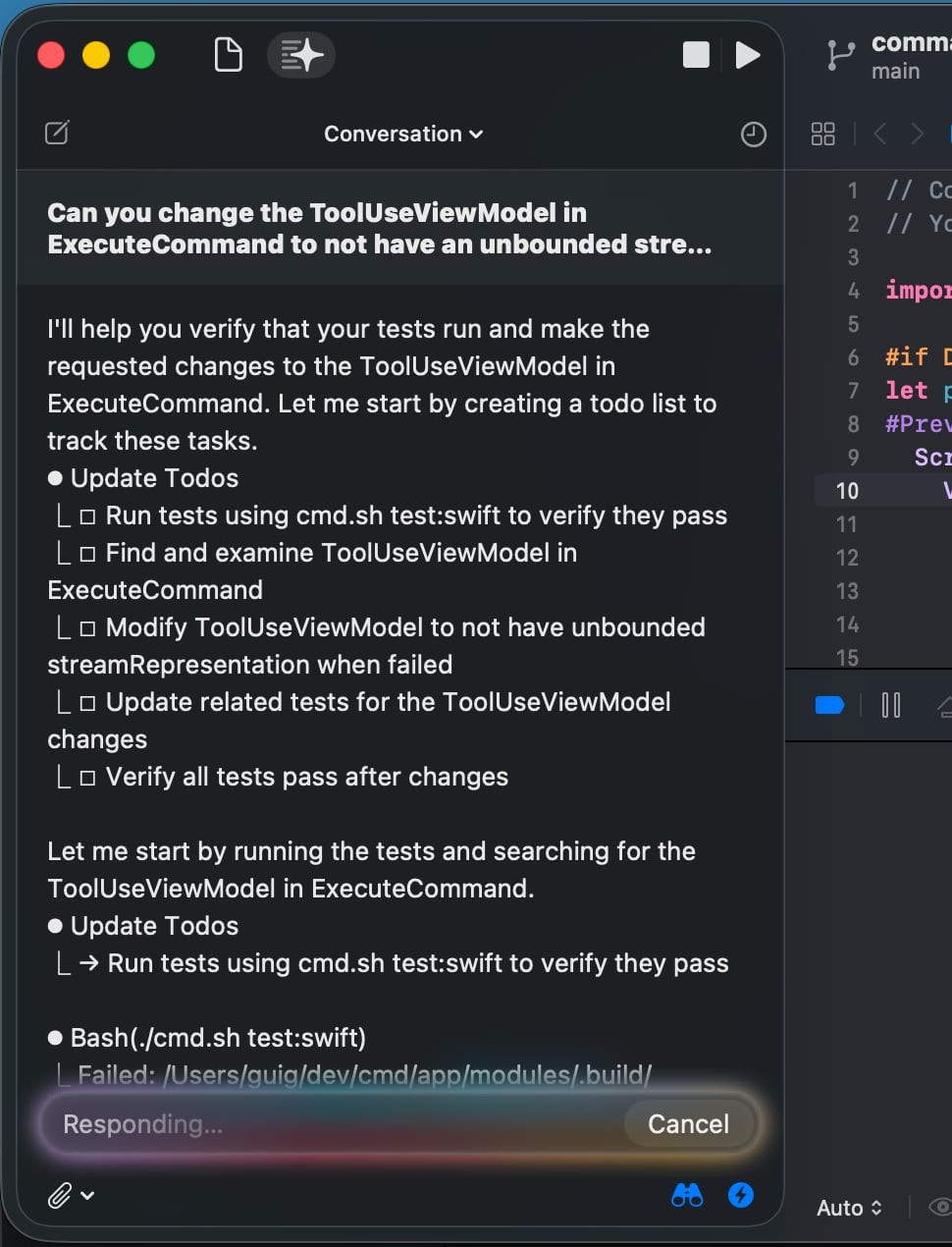
- Xcode’s AI chat: Built into Xcode 26
- cmd’s sidebar: The native cmd interface
Privacy & Security
Your code stays on your machine
- cmd runs entirely locally
- Your code is only sent to your chosen AI providers
- You can opt out of anonymized analytics
- API keys are stored in macOS Keychain
Read Privacy Details
Learn more about cmd’s open source philosophy and privacy approach